
FOCAL PERSON USER MANUAL
Table of Contents
1. Introduction
What is NACTE?
The National Accreditation Council for Teacher Education (NACTE) was established in 2007 under the Higher Education Commission (HEC) of Pakistan. NACTE is responsible for accrediting teacher education programs offered by universities and institutions across Pakistan.
What is a Focal Person?
A Focal Person (FP) is the official representative of an institution who manages the accreditation process on behalf of their institution. The Focal Person:
- Submits accreditation applications
- Uploads required documents
- Responds to evaluation queries
- Tracks application status
- Manages department, program, and faculty records for their institute
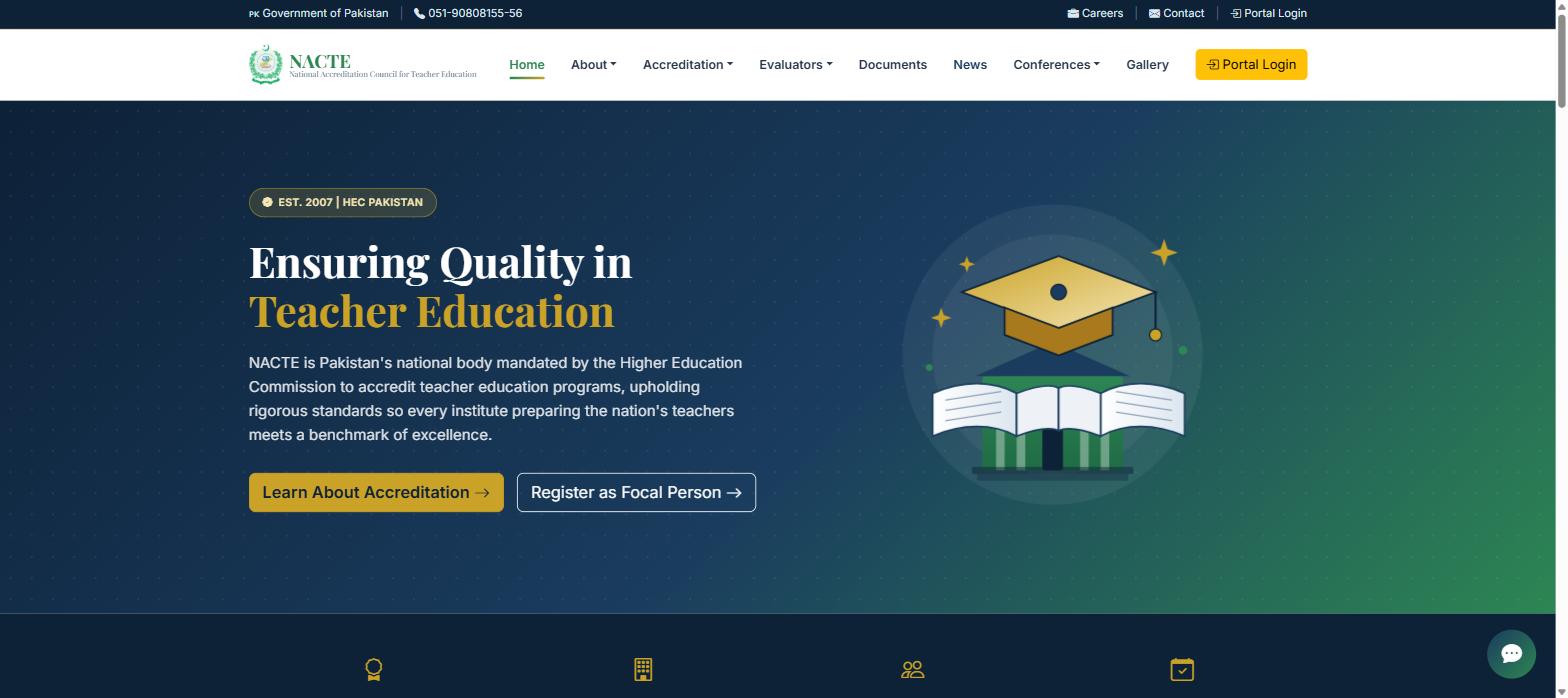
2. Getting Started
2.1 Registration
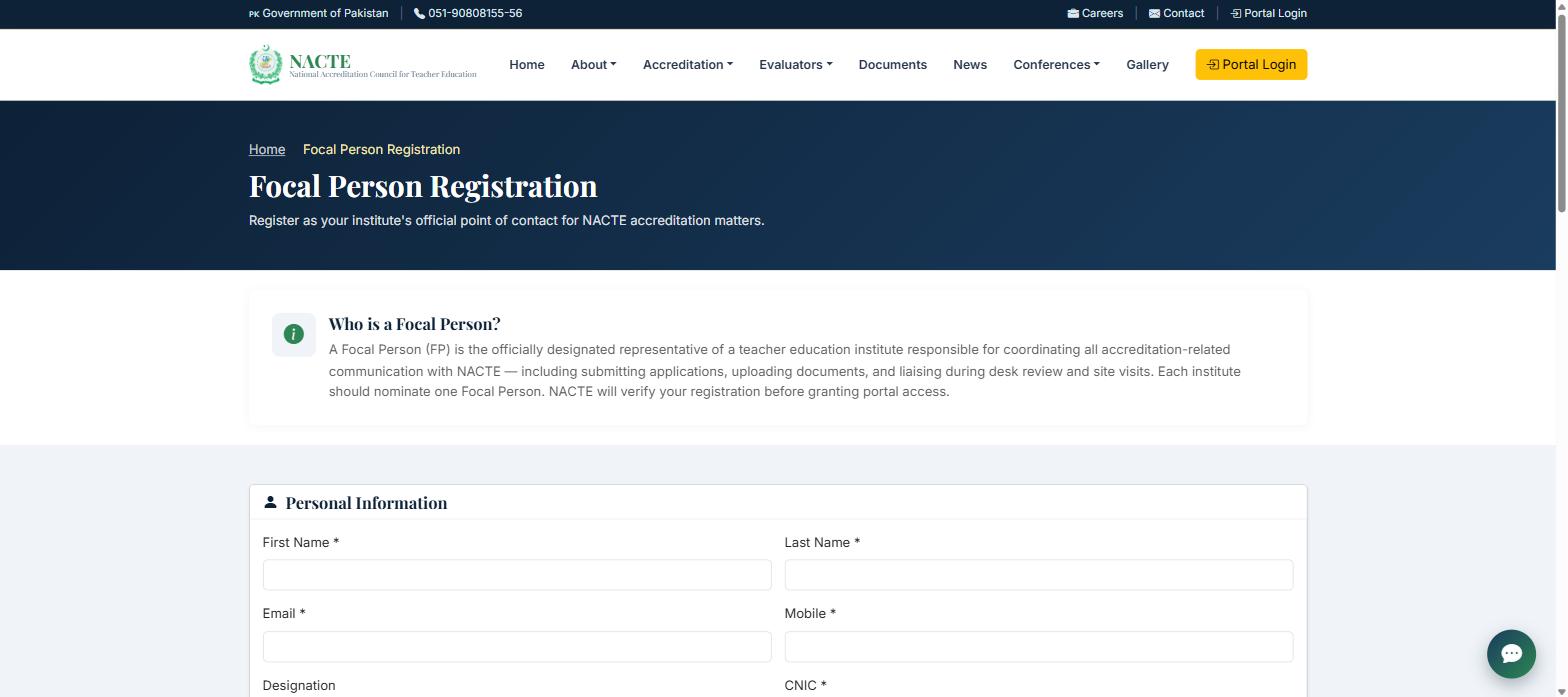
Registration happens on the public NACTE website, before you have portal access.
Personal Information
- First Name, Last Name *
- Official email address * — this becomes your portal login username
- Mobile number *
- Designation at your institution
- CNIC * — with dashes, format
12345-1234567-1(e.g.00000-0000000-0)
Institute Information
- Institute Name *, Institute Code, Website
- Department Name * (where Teacher Education is offered), Department Landline
- City *, Province *
- Ownership, Institute Type, Institute Nature
- Institute Status * — choose Chartered or Affiliated; the form then asks for matching details (Charter Number/Date, or Affiliated-With/Reference No./Affiliation Date/Notification No.)
Head of Department (HOD) Information
- HOD Name *, HOD Email *
- HOD Landline, HOD Mobile
Required Documents
- CNIC front image * — JPG/JPEG, max 500KB
- CNIC back image * — JPG/JPEG, max 500KB
- Signed Letter Head Application * — PDF, max 1MB
Security Code — type the captcha code shown on screen *
FP-0042) — note it down. A confirmation email is also sent to the address you provided.
- An email address or CNIC can only be used for one active application at a time.
- Provide accurate information — incorrect data may delay approval.
- Keep your reference number (FP-XXXX) — you'll need it to check your status.
2.2 First Login
After your account is verified, you'll receive an activation email with a temporary password.
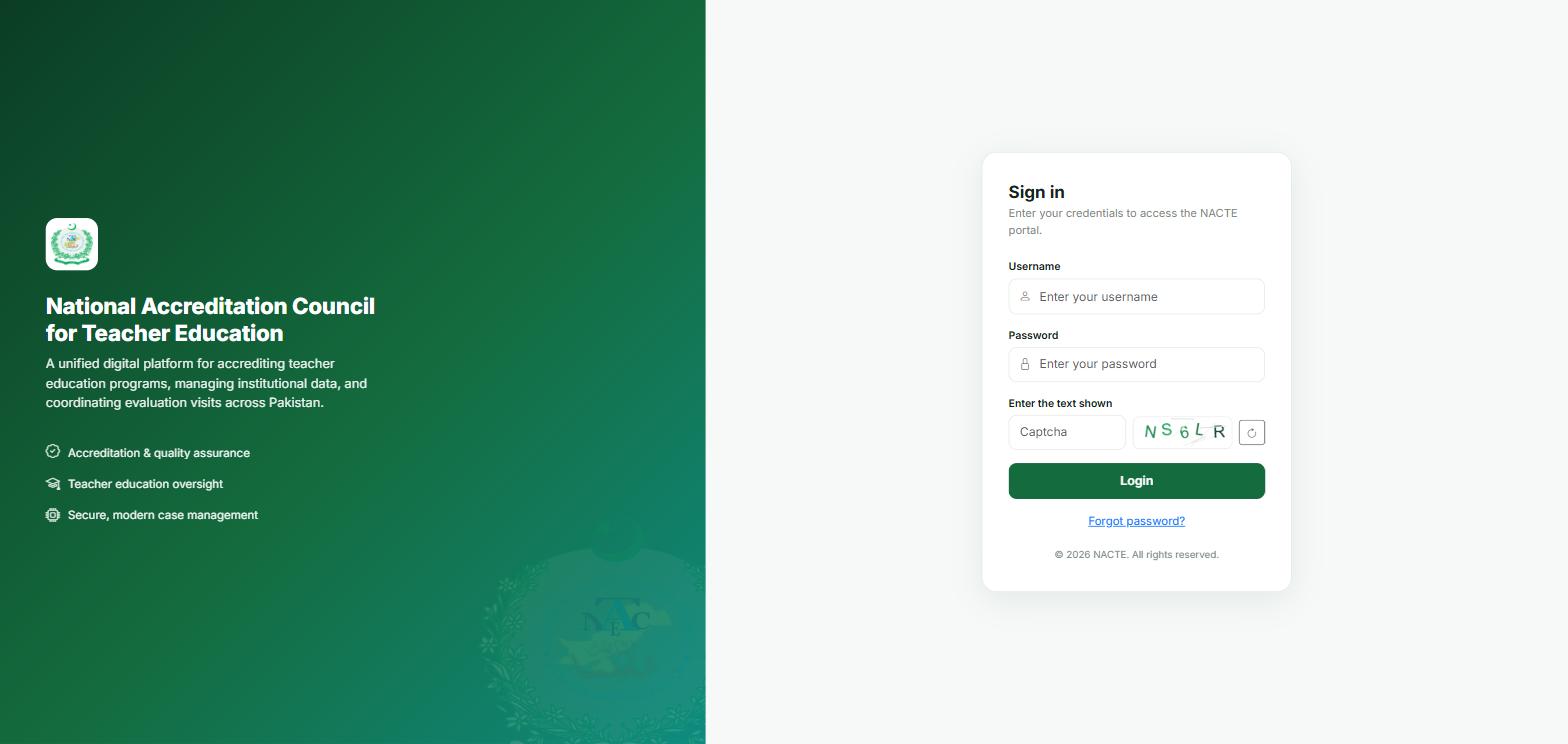
Password: the temporary password from your activation email
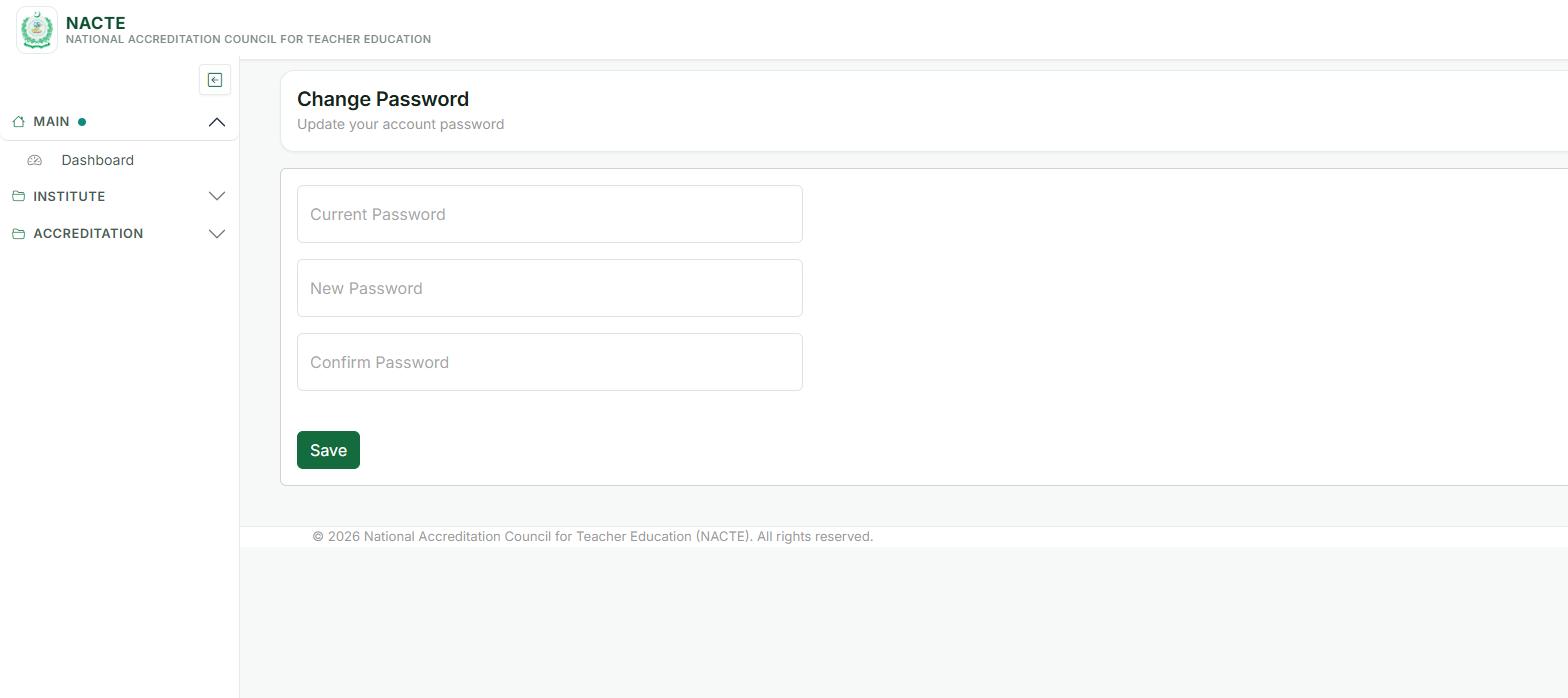
2.3 Dashboard Overview
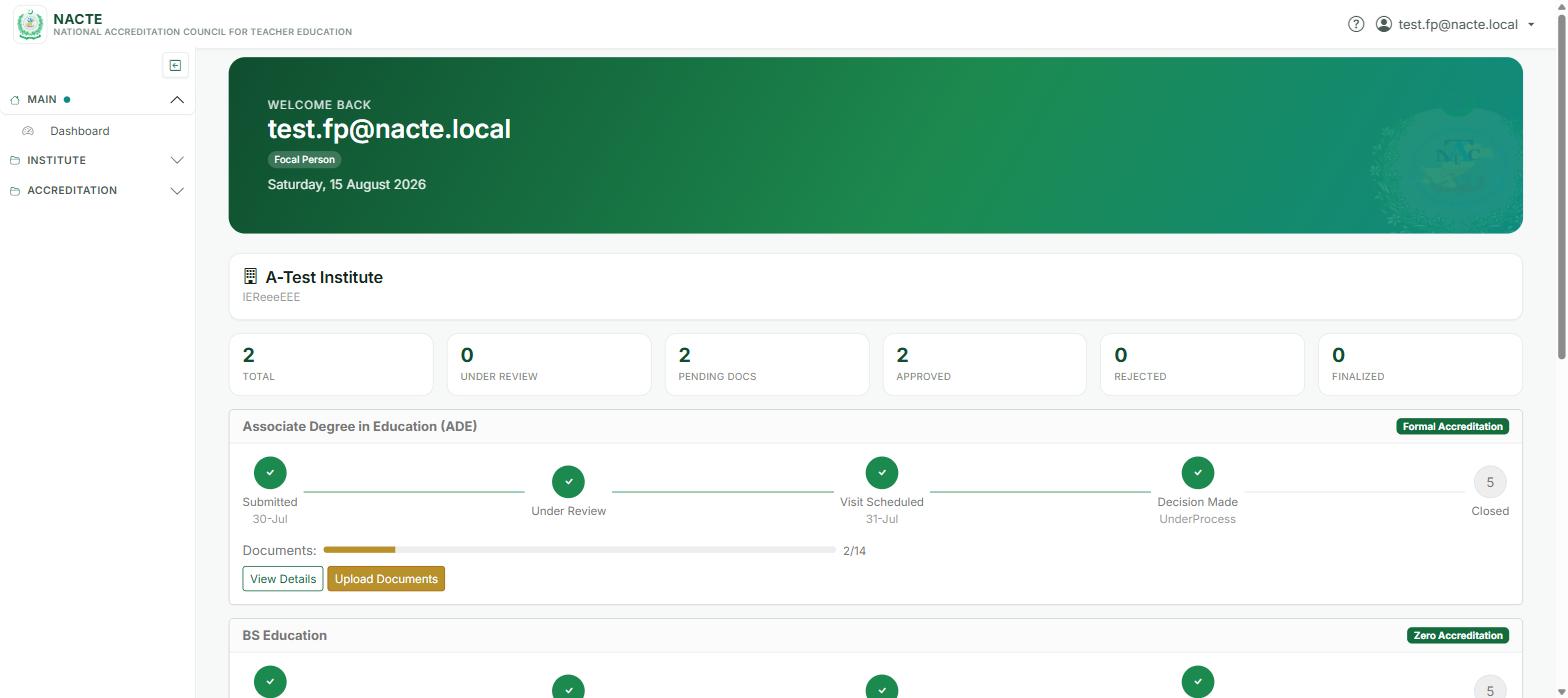
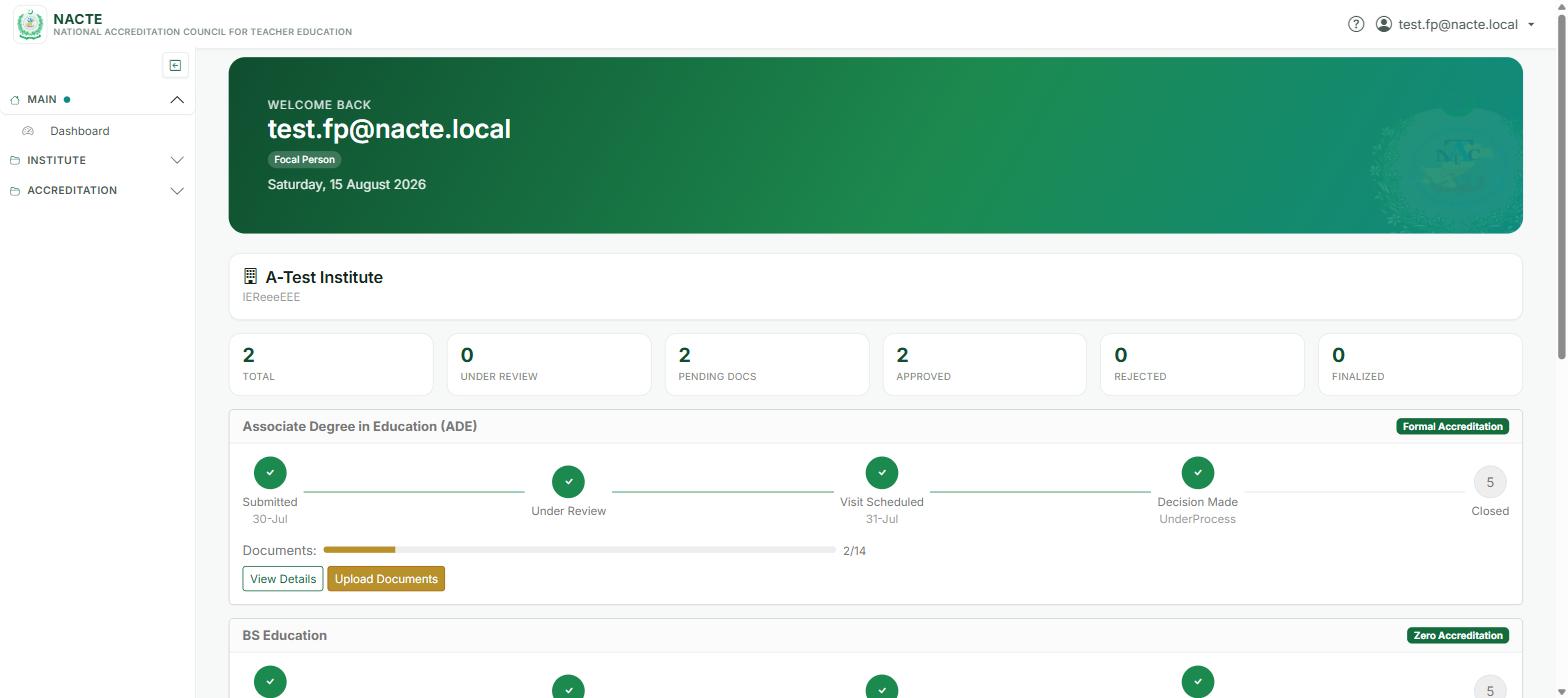
After login (and two-factor setup) you land on your Dashboard.
- Summary tiles — Total, Under Review, Pending Docs, Approved, Rejected, and Finalized counts for your applications.
- Per-application tracker — for each active application, a 5-stage progress line: Submitted → Under Review → Visit Scheduled → Decision Made → Closed, plus a Documents progress bar and (for Zero Accreditation applications) a Parameters/Q&A progress bar.
- My Applications table — every application for your institute, with Code, Program, Status, Flow, Date, Docs, Q&A, and File #.
- Quick access cards — shortcuts to the modules your account has been granted (Accreditations, Institutes, ...).
3. Institute Management
3.1 My Institute
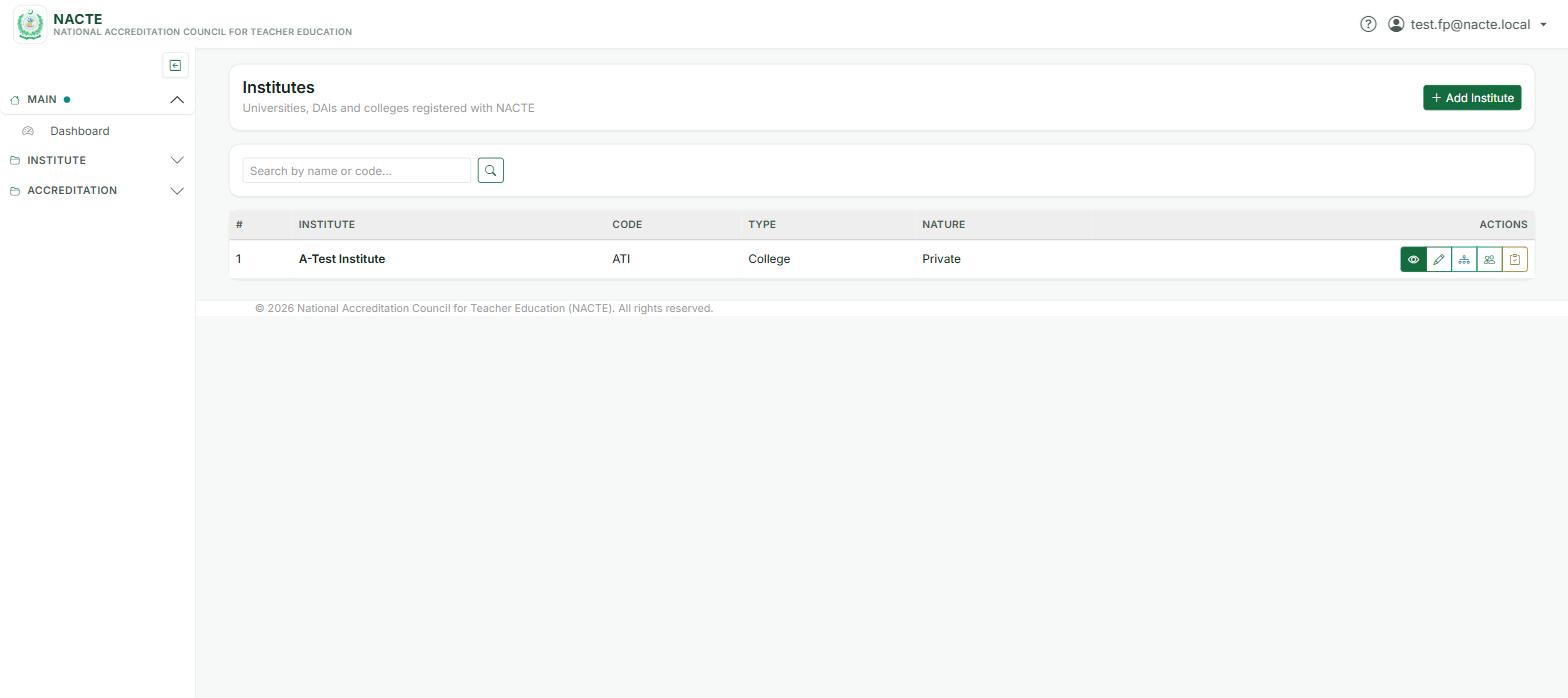
The Institutes list (left menu) shows your own institute — name, code, type, nature, and a row of action icons:
- Overview — full institute detail page (contact info, departments, accreditation history)
- Edit — update institute details
- Departments, Faculty, Accreditations — jump straight to those lists for this institute
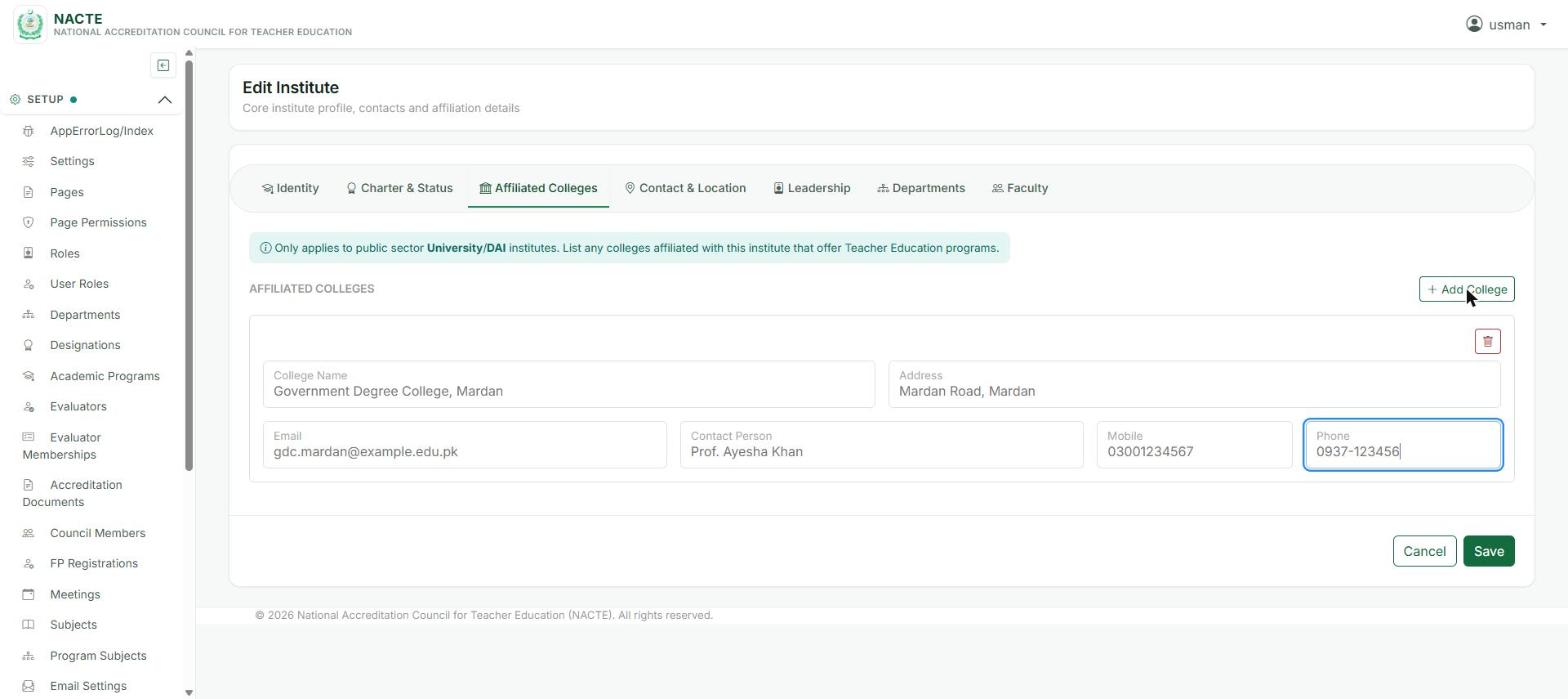
If your institute is a Public University or DAI (Degree Awarding Institute), an extra Affiliated Colleges tab appears when you Edit your institute. Use it to list any colleges affiliated with your university that offer Teacher Education programs — College Name, Address, Email, Contact Person, Mobile, and Phone for each. Click + Add College to add a row, fill in the details, and Save.
This tab appears automatically based on your institute's Ownership and Type — it's hidden for institutes that aren't a Public University/DAI (private institutes, colleges, etc.), so you won't see it unless it applies to you.
3.2 My Departments
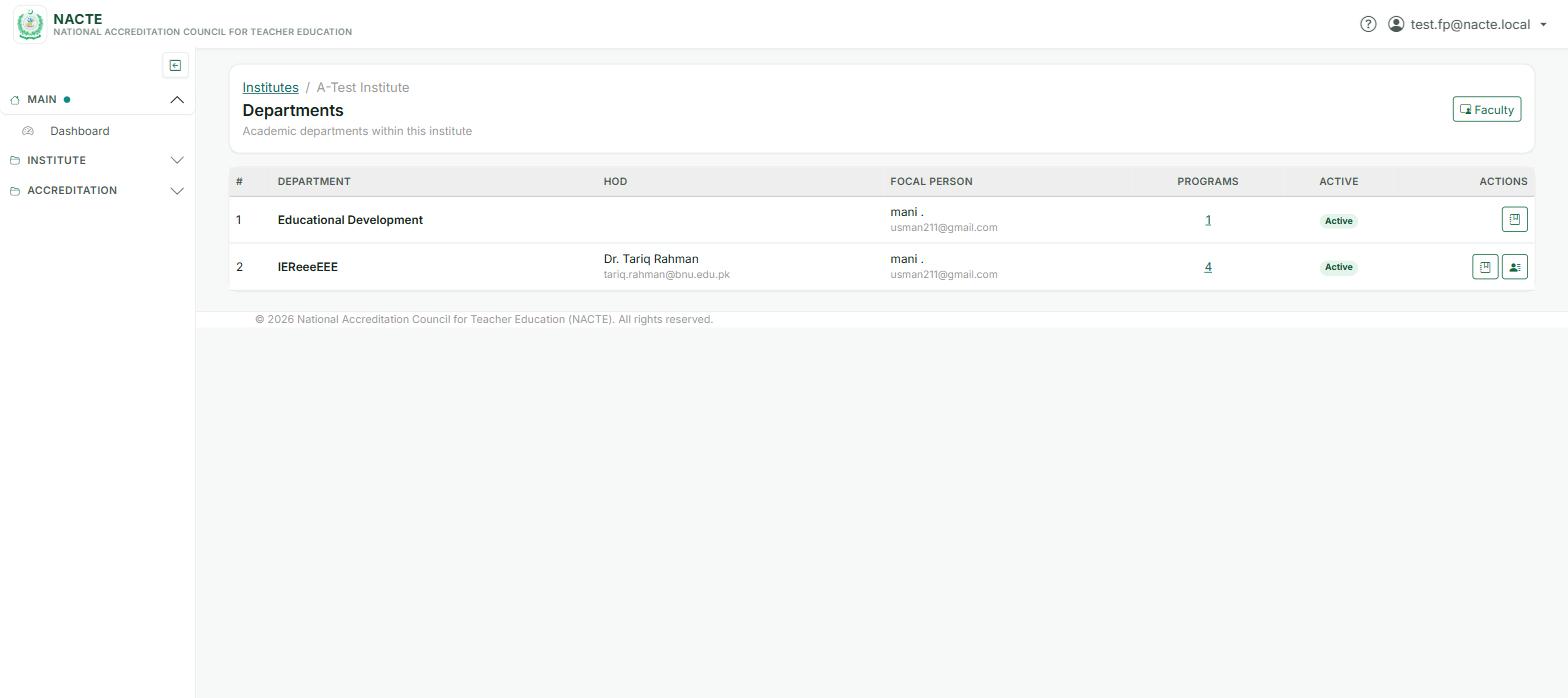
Select My Departments from the menu to see the departments in your institute: Department name, HoD, Focal Person, number of Programs, and Active status.
3.3 Programs Offered
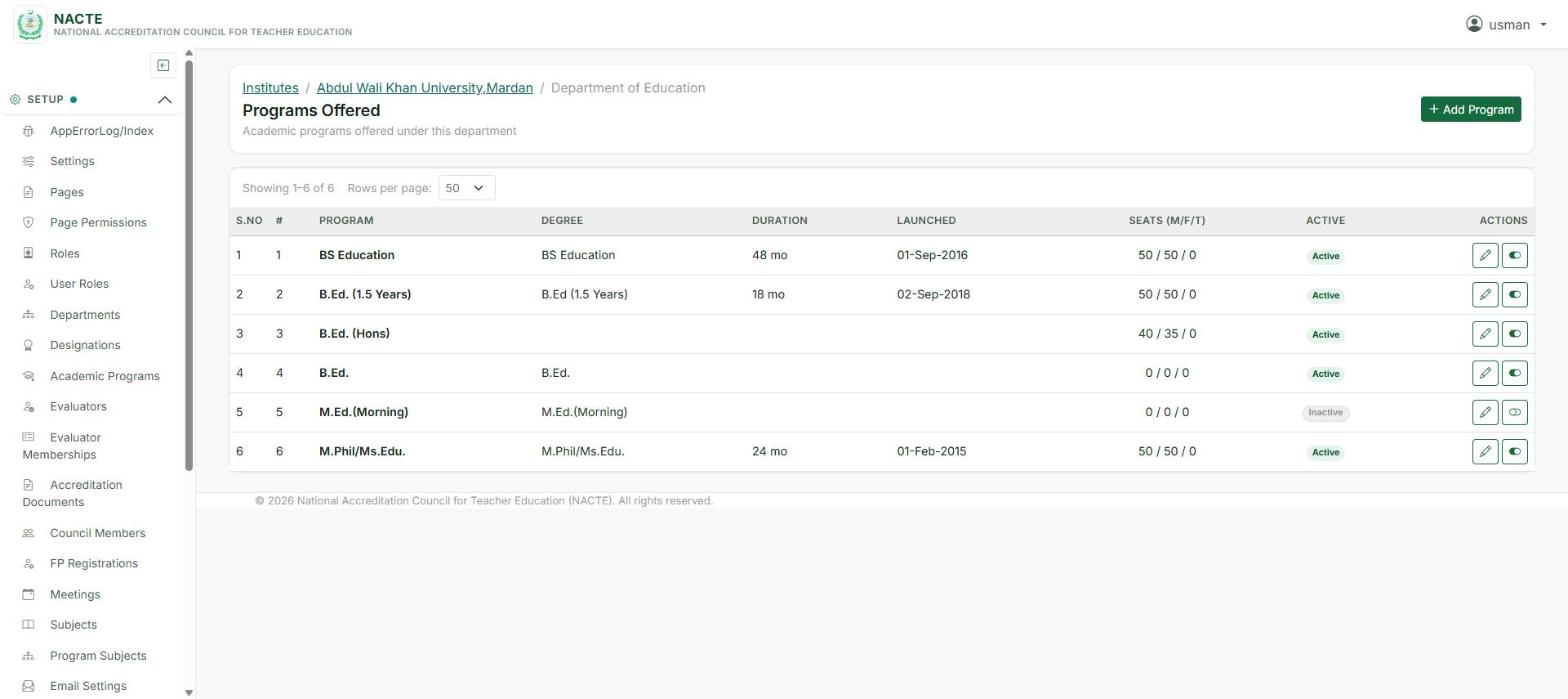
Select Programs Offered (or click a department's program count) to see the teacher education programs offered under that department: Program, Degree, Duration, Launched date, Seats (Male/Female/Transgender), and Active status. These programs are what you'll choose from when applying for accreditation.
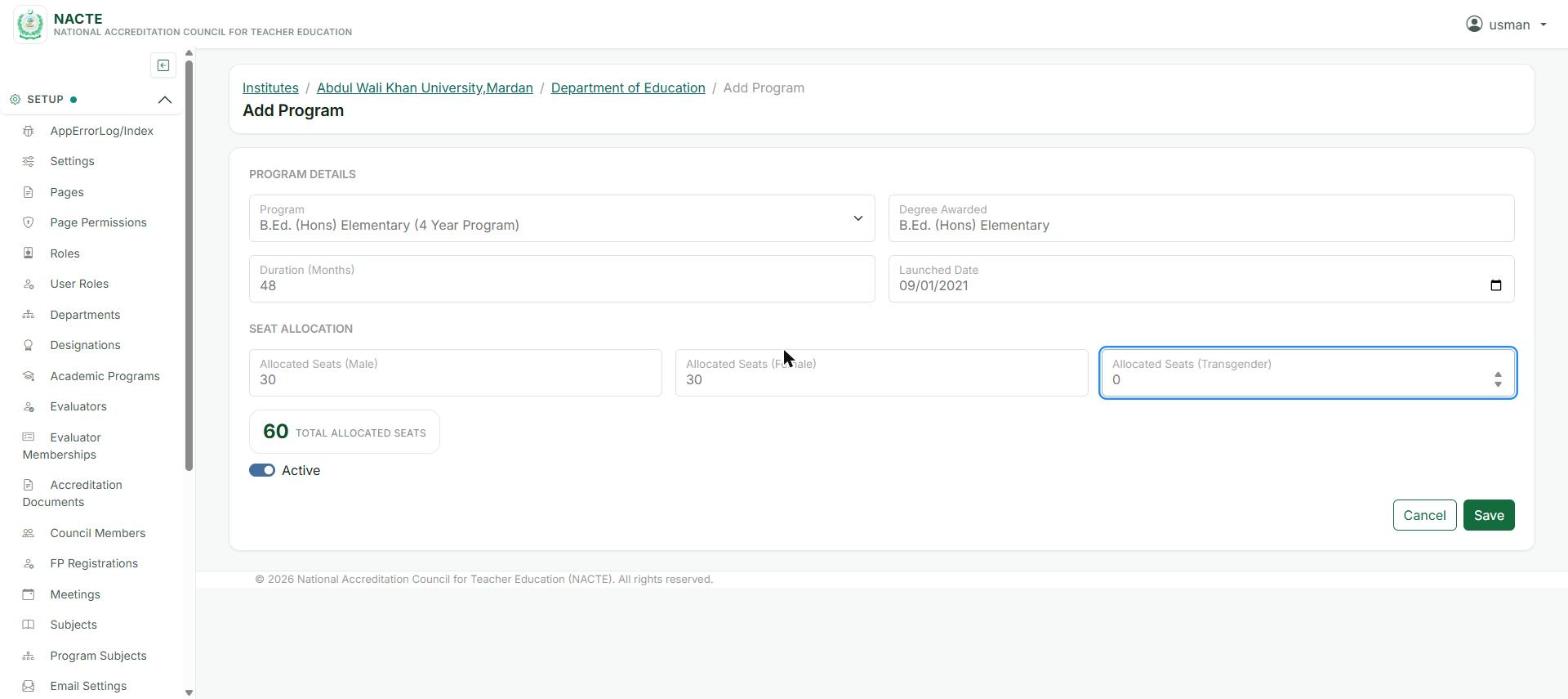
To add a program:
- Degree Awarded — the degree title as it appears on the certificate
- Duration (Months) — total program length
- Launched Date — when your institute first started offering this program
Use the icon to edit a program's details at any time — unless it has already been used in an accreditation application, in which case only NACTE Admin can edit it from that point on.
The icon on each row switches a program between Active and Inactive. This does not delete the program or any of its history — it only controls whether the program can be selected for a new accreditation application.
| Setting | Effect |
|---|---|
| Active | Program shows in Programs Offered and in the Program dropdown when applying for accreditation. |
| Inactive | Program still shows in Programs Offered (badged "Inactive") but is removed from the accreditation application's Program dropdown. Past/existing accreditation applications for the program are unaffected either way. |
If your program isn't showing up when applying for accreditation, this is almost always why. Go back to Programs Offered, find the program — it's still listed, just marked Inactive — and click the icon to reactivate it. It becomes selectable again immediately, with no need to re-enter its details.
3.4 My Faculty
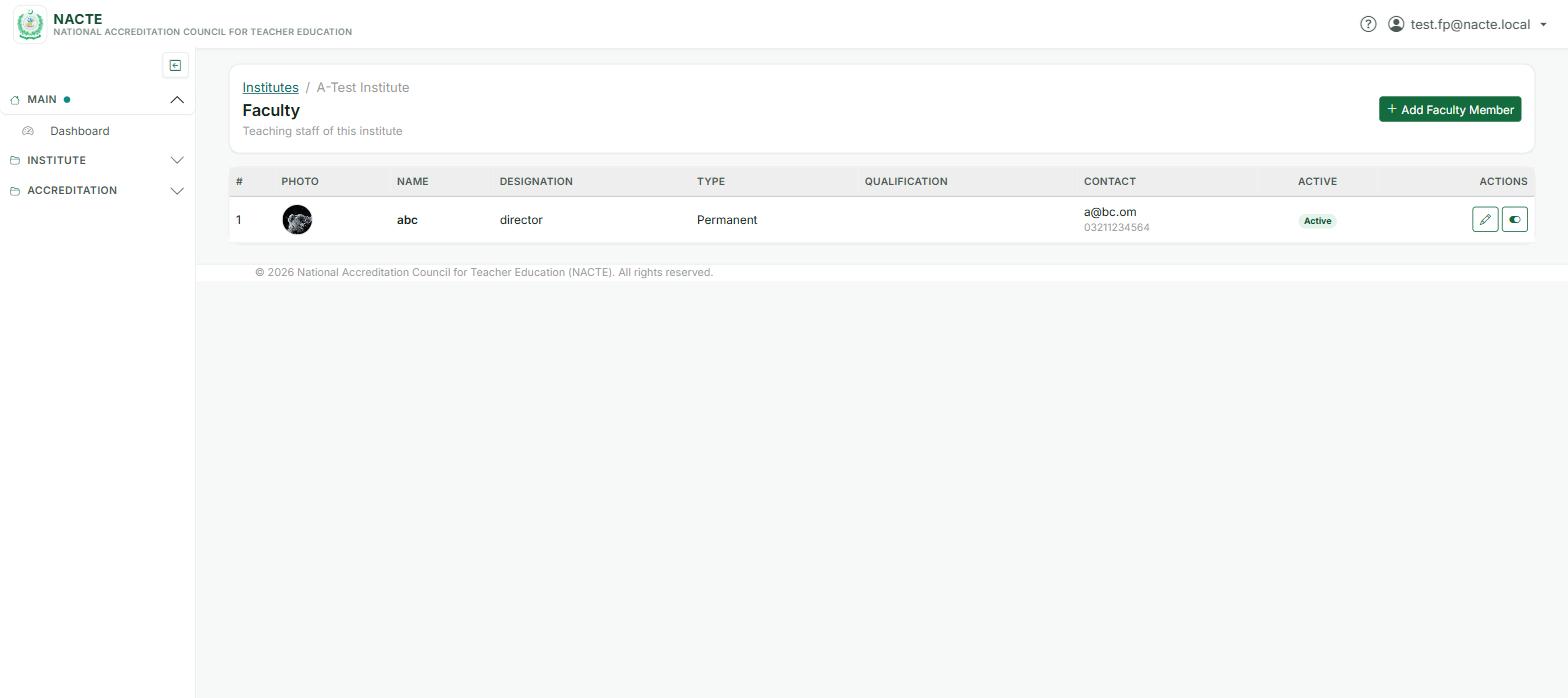
Select My Faculty to see faculty linked to your institute: photo, name, designation, type, qualification, and contact details.
You can Add Faculty Member and edit/toggle-active existing entries. When adding or editing a faculty member:
- CNIC must be in the format
12345-1234567-1 - Mobile number must be in the format
03XXXXXXXXX - Email must be a valid email address
4. Accreditation
4.1 Understanding Accreditation
| Formal Accreditation | Zero Accreditation |
|---|---|
| For existing, running programs. Requires a site visit. Valid for 3 years from the visit start date. | For new programs not yet started. Desk review to begin with. Valid for 1 year from the visit start date. |
Award Levels (best to entry): W — highest recognition, X, Y, down to Z — entry level. A program that does not meet requirements is marked Not Accredited.
4.2 Applying for Accreditation
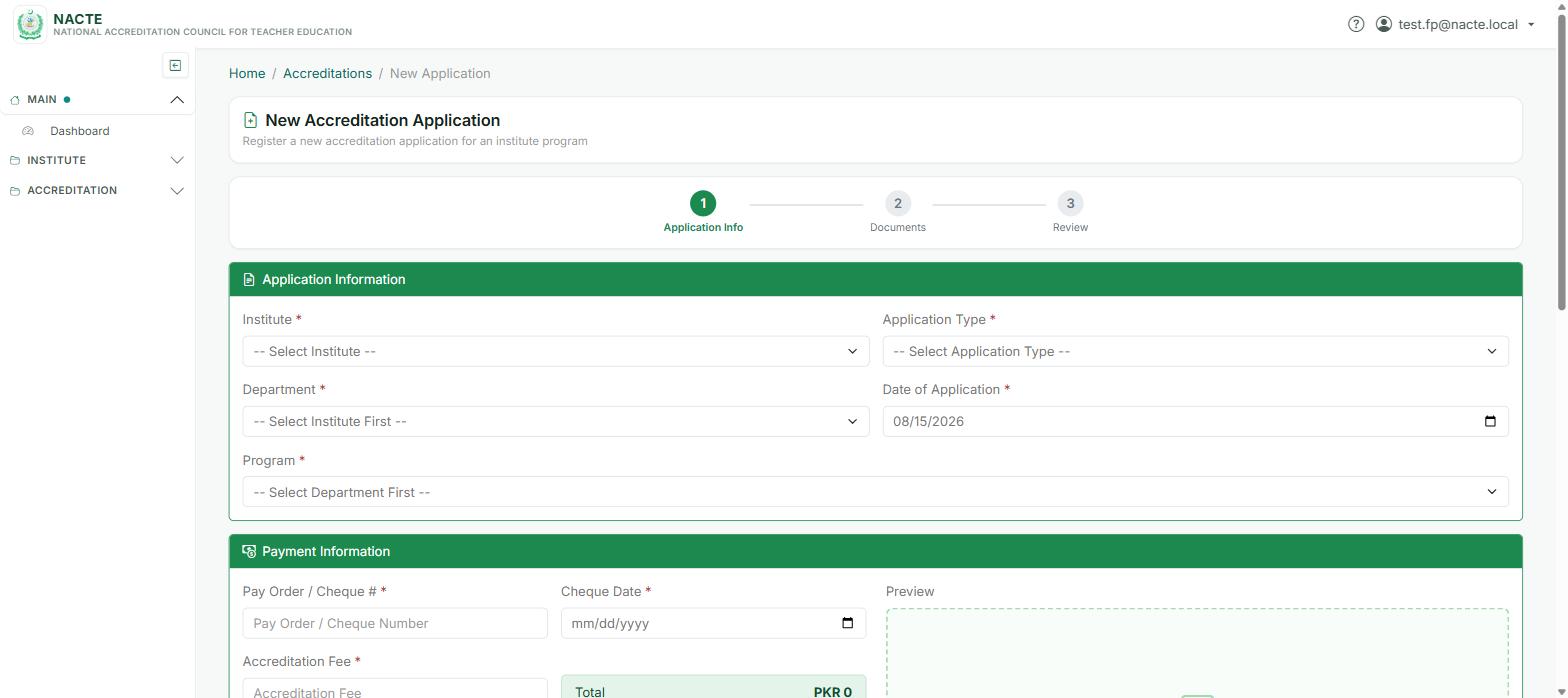
Open Accreditation in the menu and click New Application. This is a single form — fill it in and submit once:
- The program is set up under Programs Offered (Section 3.3)
- Your Pay Order / Cheque image is ready to upload
- Your enrollment and staff counts are accurate — the fee is non-refundable
4.3 Required Documents
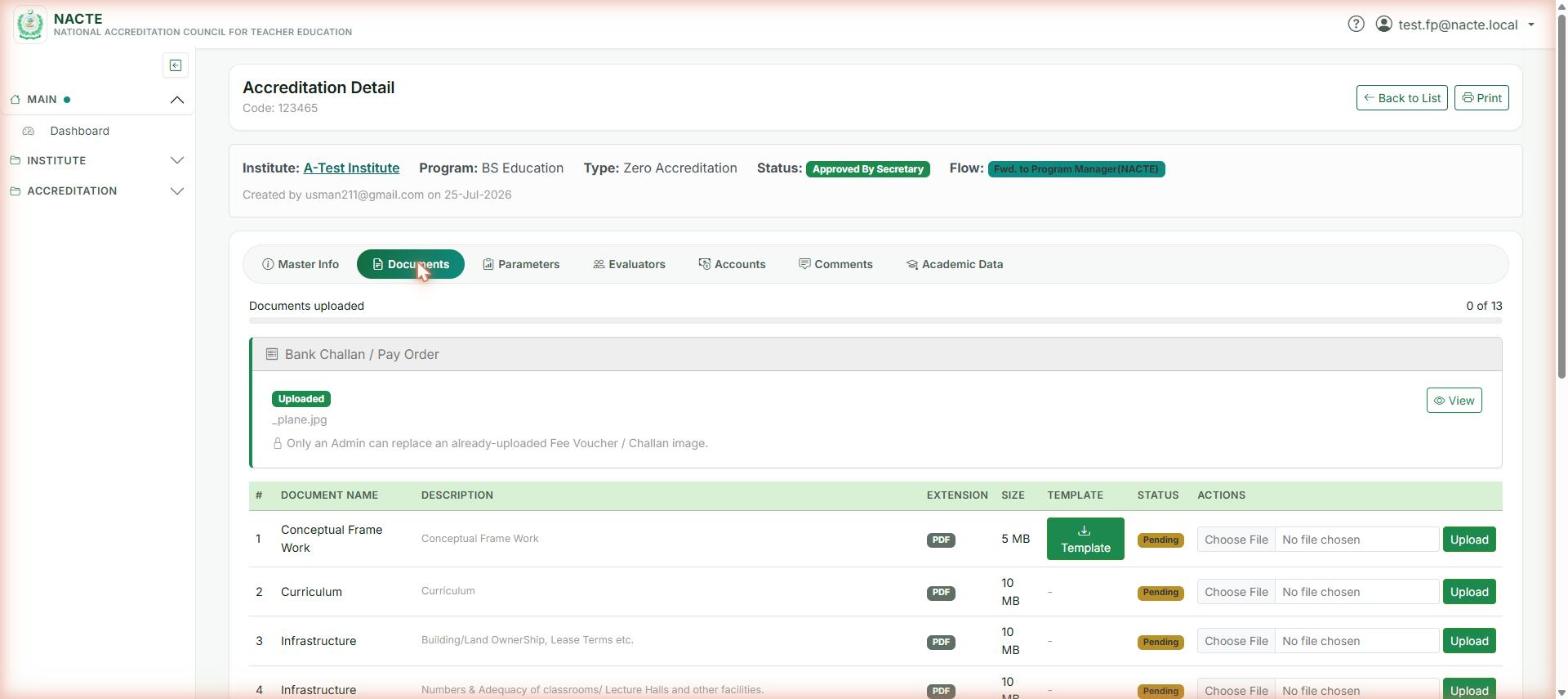
Open your application and go to the Documents tab. A progress bar shows how many of the required documents you've uploaded.
- Each required document row shows its allowed extension, maximum size, and a template download if one exists.
- Click Upload next to a pending document, choose the file, and save. An uploaded document shows a green "Uploaded" badge with View and Delete options.
- The Bank Challan / Pay Order image has its own card at the top — once uploaded, only NACTE Admin can replace it.
4.4 Tracking Your Application
| Status | Meaning |
|---|---|
| New / Open | Application received by NACTE, not yet picked up |
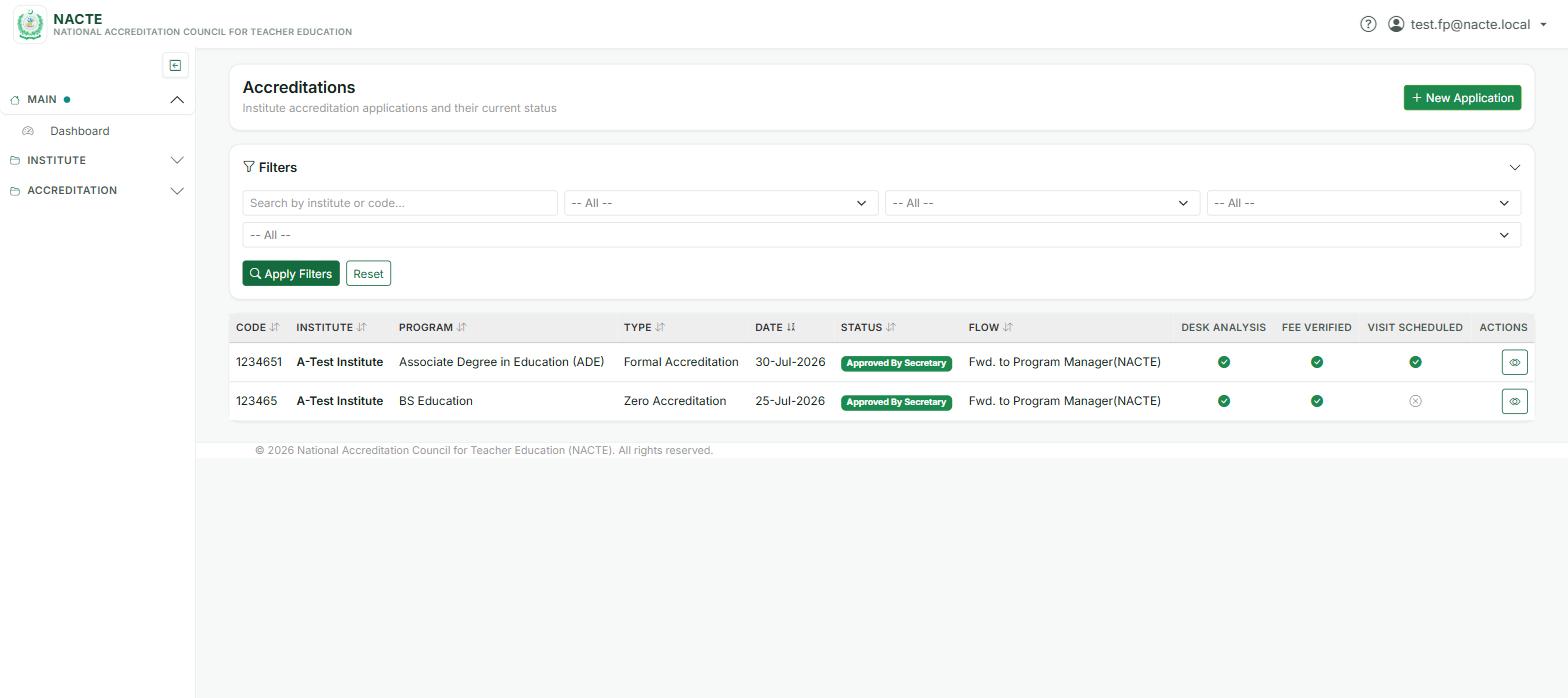
| Desk Analysis | NACTE staff reviewing your application and documents |
| Fee Verified | Accounts has verified your fee payment |
| Evaluator Assigned | Evaluators have been assigned to your case |
| Visit Scheduled | A site visit date has been set |
| For Approval To Secretary / Approved By Secretary | Working its way through Council approval |
| Closed | The application has reached a final decision |
Check status from your Dashboard (Section 2.3) or from Accreditation → My Applications — click any row to open its full detail and history.
4.5 Parameters (Q&A Section)
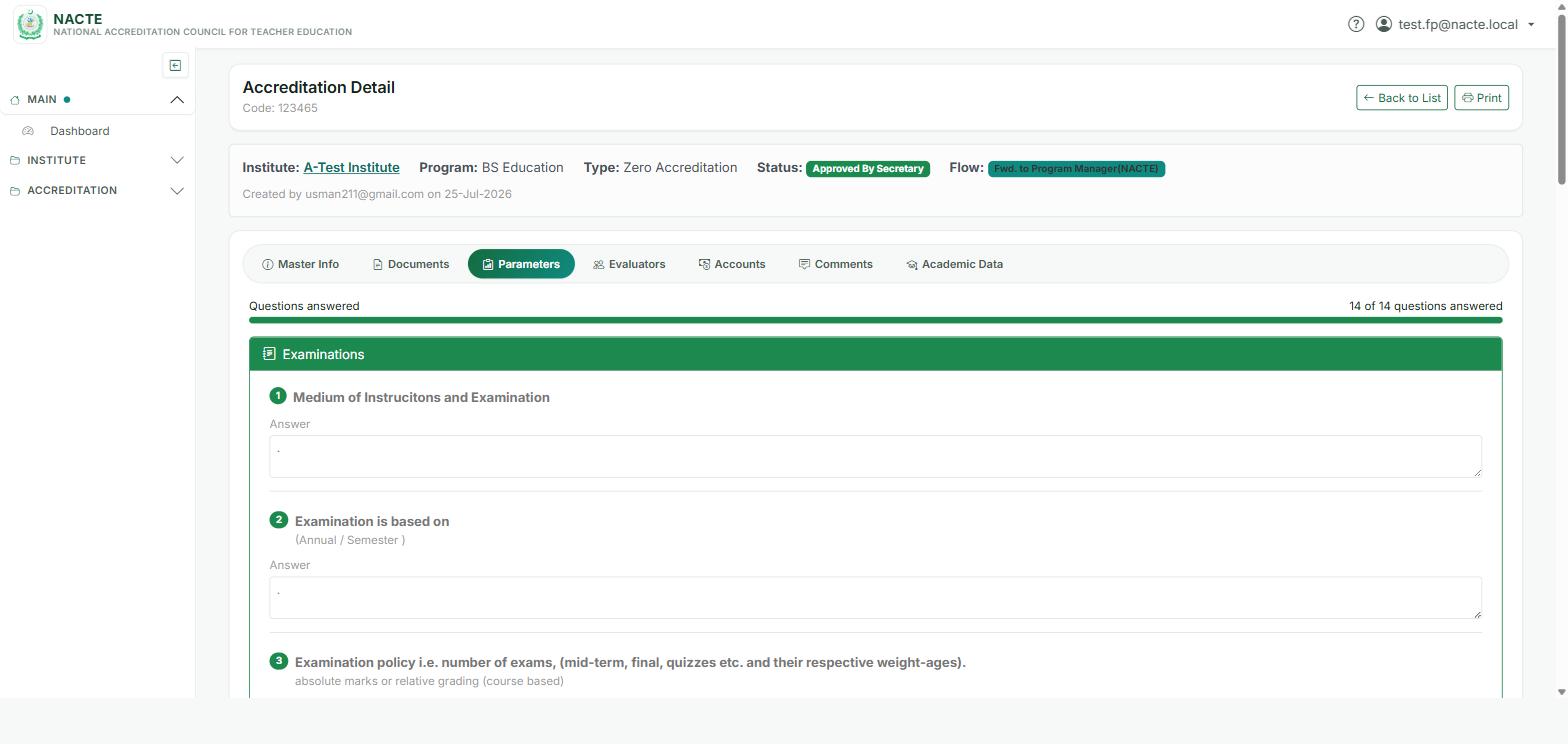
Zero Accreditation applications include a Parameters tab with a set of questions to answer online.
5. Important Notes
- Always use your official email for all NACTE communications.
- Keep your password confidential — never share your login credentials.
- Upload documents before deadlines; late uploads may not be accepted without an admin extension.
- Ensure all data is accurate — incorrect information may delay or invalidate your accreditation.
- Check your dashboard regularly for status updates and items needing your action.
- Contact NACTE immediately if you notice any errors in your institute information.
6. Contact & Support
For technical support or queries:
- NACTE Secretariat, Sports Block, HRD Building, HEC, H-8/1, Islamabad
- 051-90808155-56
- [email protected]
- nacte.gov.pk
Office Hours: Monday to Friday, 8:00 AM to 4:00 PM